
Opening patientrack via Cortex is easy, no re-entry of login or password required
Note:
If you have never used patientrack before, and the first time you try is via Cortex, it may not work
The following steps should address this issue:
- On your desktop, Click on Menu icon bottom left of desktop screen, scroll down to patientrack and click to open.
- If this is the first time you have logged in, a screen comes up about roles and user availability.
- If this screen doesn't come up, access to patientrack via Cortex should work as expected.
- If this screen does come up, answer questions as required, then click on user availability and
tick to select area. Once this has been done access to patientrack via Cortex should work as
expected.
To access patientrack via Cortex
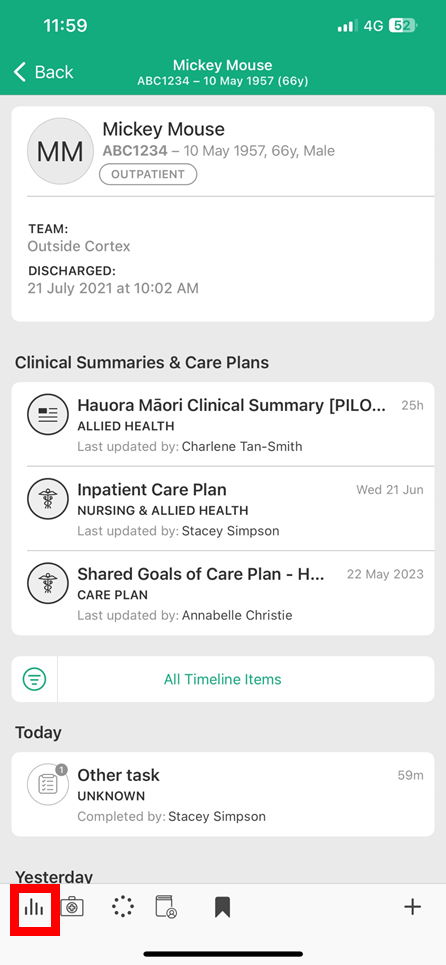
- Tap on the Graph icon at the bottom left of the screen
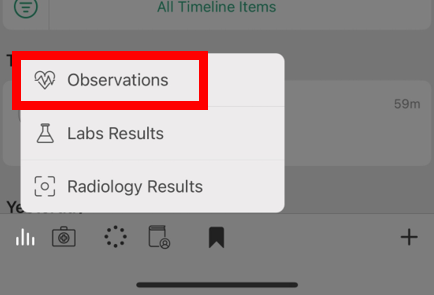
- Then Tap on Observations to launch patientrack in patient context
NOTES:
- If you are having issues launching patientrack from within Cortex please contact your organisations IT help desk to resolve.
- If you are accessing Cortex from a BYOD device and you are having issues loading patientrack, check Cortex has been installed with organisation requirements (see: Install Cortex article)