
Opening Eclair via Cortex is easy, no re-entry of login or password required
To view Lab & other results via Eclair
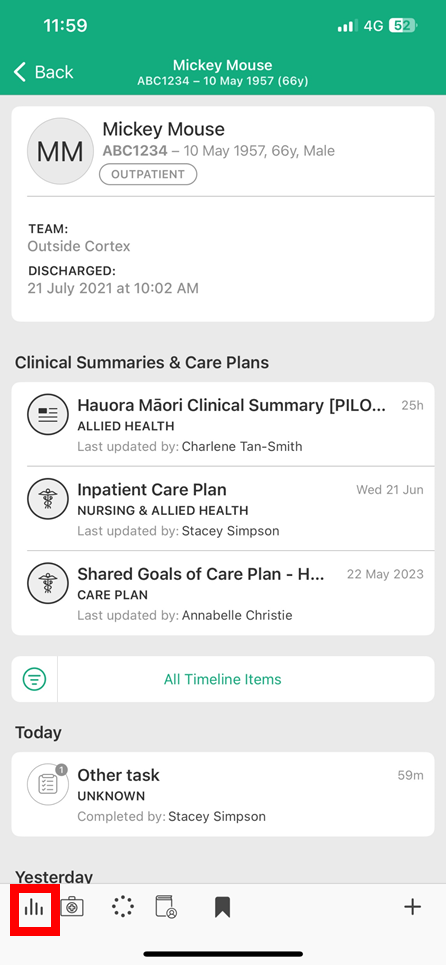
- Simply Tap on the Graph icon at the bottom left of the screen
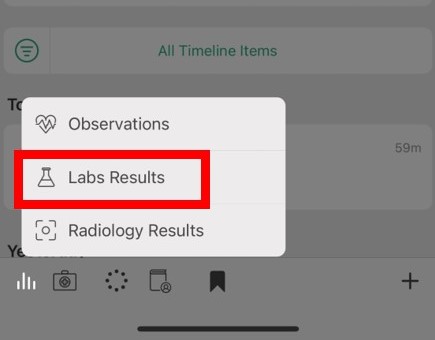
- Then Tap on Labs Results to launch Eclair in patient context
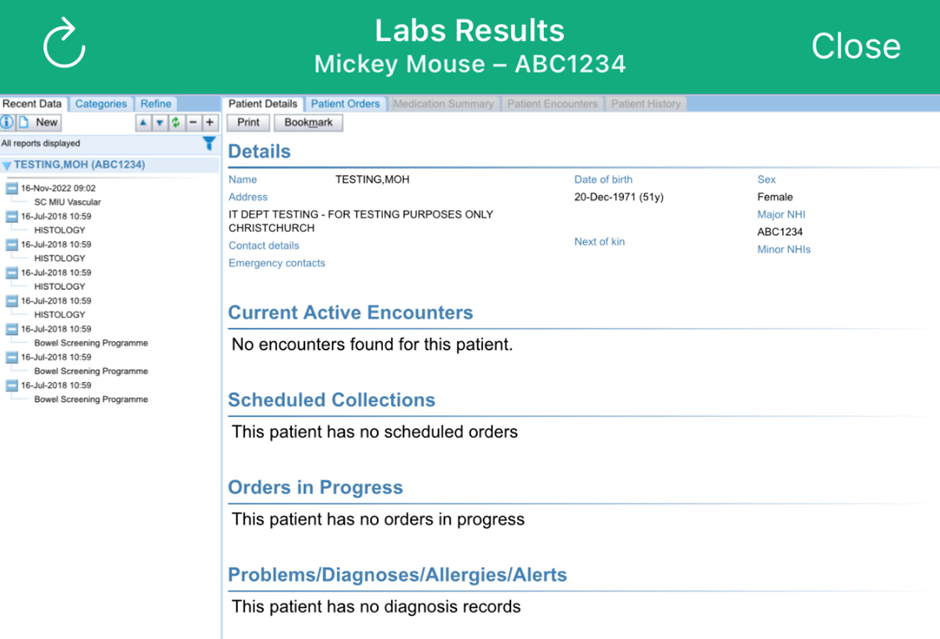
Note:
- If you are having issues launching Eclair from within Cortex you may need to rest your password please contact your organisations IT help desk to resolve.
- If you find that Eclair is very slow to load results via Cortex, it may be related to a setting in Eclair which results in automatically pulling down a large number of results.
- To fix this, in HCS scroll down and select ‘Clinical Applications’ > ‘Eclair’ > ‘Preferences’ (Left side menu)
‘Default tab in report display’ – select ‘Recent data’
‘Preferred Cumulative view’ – select ‘Condensed’
‘Default number of episodes top retrieve’ – select ‘10’
- If you are accessing Cortex from a BYOD device and you are having issues loading Eclair, check Cortex has been installed with organisation requirements (see: Install Cortex article)