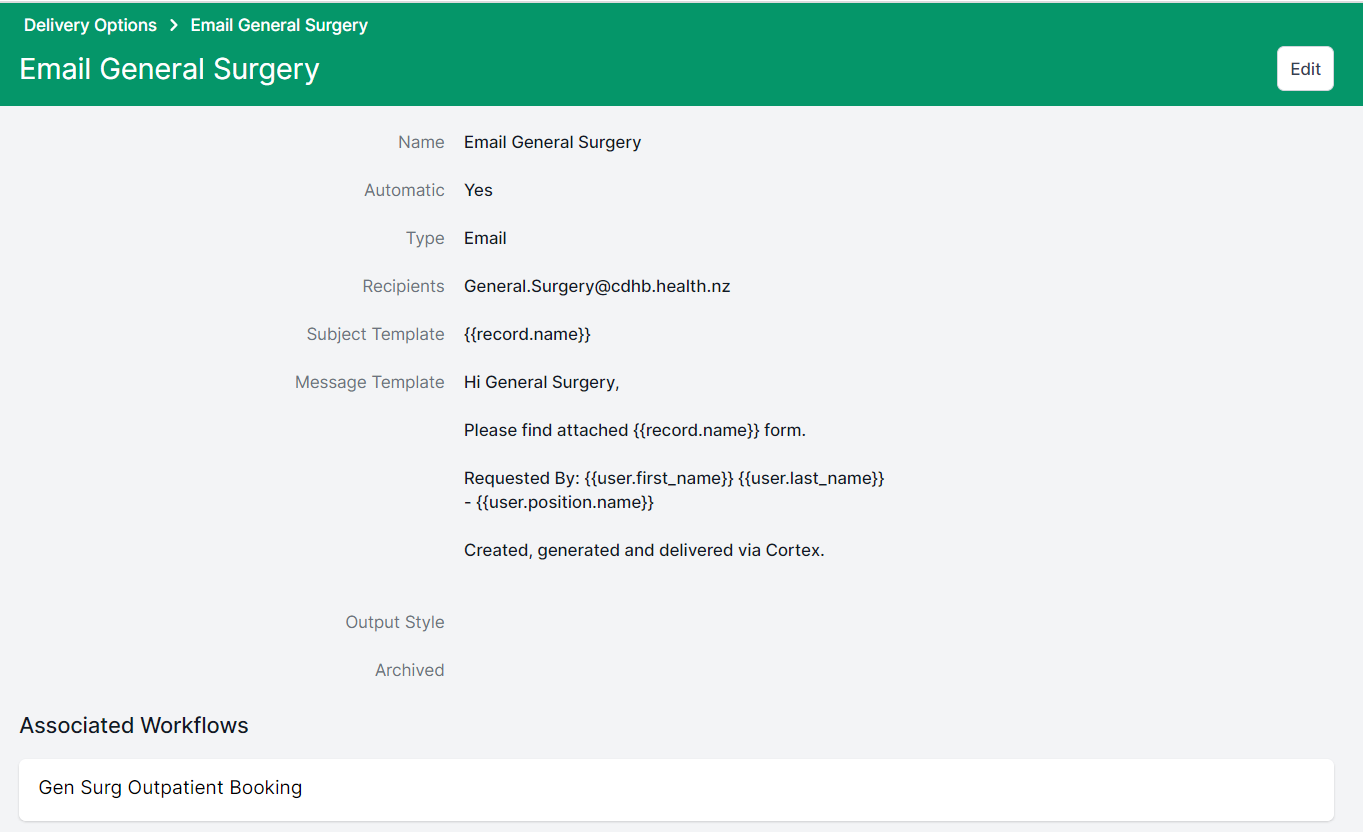
Delivery options are created in the Cortex web admin and can be attached to a form based workflow (e.g. Clinical Note, Care Plan, Order).
Once the form has been signed, it is delivered either automatically, or by user selection to an intended destination.
Cortex allows delivery of documents to an email account, a IP printer, or an XDS endpoint.
Email delivery
- Email Delivery options need to have meaningful names to assist with correct user selection.
- Delivery options can be automatic, consideration is required if the delivery option is associated to a workflow with multiple delivery options.
- The intended recipient will need to provide their email address. Typically, this would be a shared email inbox to enable multi user monitoring.
- Email subject and body template are customisable as required (e.g. NHI not required to be shown in subject line)
- The following merge fields can be used in these templates:
- patient.external_id
- patient.first_name
- patient.last_name
- patient.full_name
- user.full_name
To create a new delivery option, Tap/click the "New" button on the right side.
Fill out the appropriate information
Editing a Delivery option
- To edit a Delivery option, first search for Delivery option from the list.
- Tap/Click the appropriate delivery option
- Tap/Click the "Edit" button on the right hand side.
- Update the details of the Delivery option as required and select "Save".
Disabling a Delivery option
Delivery options can not be deleted once created. In order to prevent them showing in Cortex, a delivery option should be archived.
- To archive a Delivery option, search for the delivery option in the list.
- Tap/click the appropriate Delivery option.
- Tap/click the "Edit" button on the right hand side.
- Make sure "Archived" is checked.
- Tap/click "Save".