
If you're part of the health care team providing care to a patient, you will need to follow that patient.
Following a patient is straight forward to setup and can be adjusted whenever needed.
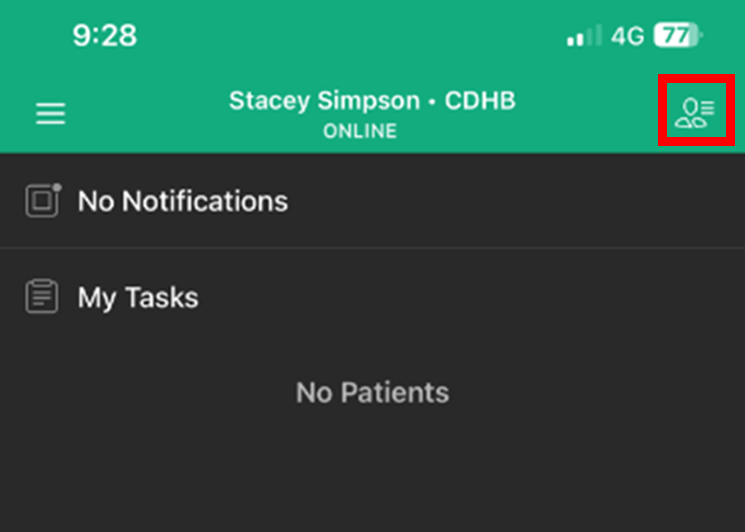
- Tap the "Manage my Patients” icon in the top right corner of the home screen.
- Tap 'Manage My Patients'
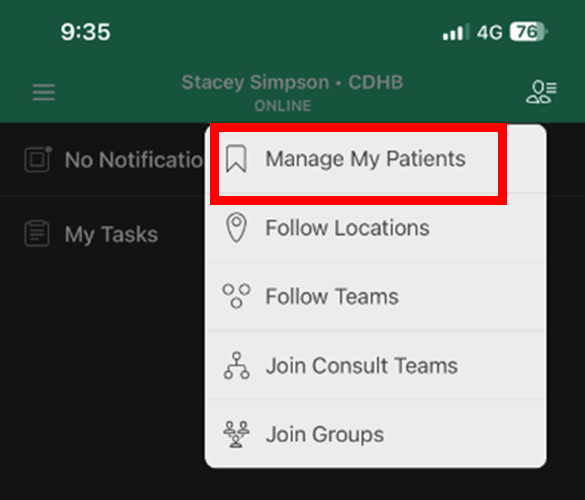
There are 2 ways to select patients under ‘Manage my Patients’
- Search by NHI
- Select Ward and Select patients from list
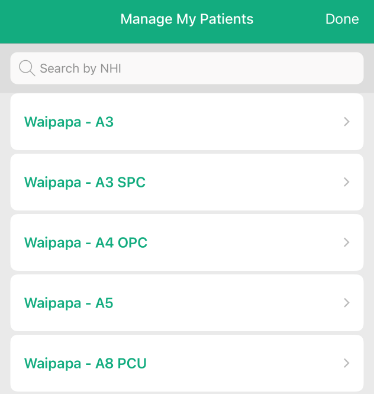
Search by NHI
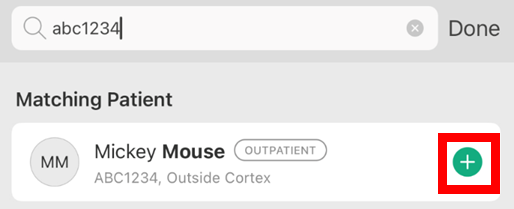
- Enter full NHI into Search bar
- Patient should appear for selection
- Tap Green + button beside the patient
- Tap 'Done'
Patient will now be visible under Patients Filter Tab in Cortex Home View
(Please note: NHI search function in Cortex is not a National Health Index look up – patients must have been previously admitted for them to appear)
Search by Location
- Tap on Location
- All patients who are currently inpatients in that location will be displayed
- Tap to select the patients you wish to follow (a green tick will appear beside those selected)
- Tap the < Back arrow in the top left
- Choose another location if required, or
- Tap 'Done'
Patients will now be visible under Patients Filter Tab in Cortex Home View
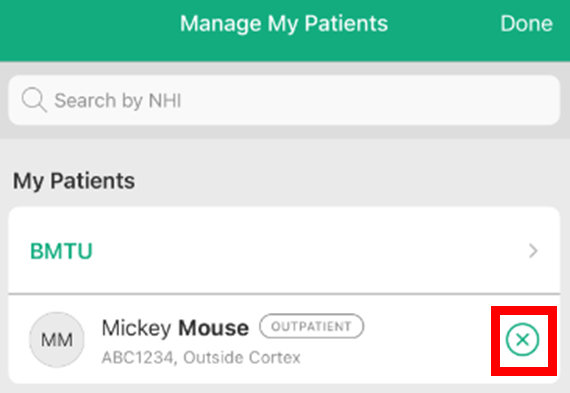
To Unfollow a patient
- Tap the ‘Manage my Patients’ icon in the top right corner of the home screen.
- Tap the Green X beside the patients name to remove that patient from your patient list.
Notes:
- If you are not following any other patients in that location, when you unfollow the patient the shortcut to the location will also disappear in 'Manage My Patients"
- You can not unfollow individual patients that you are following as part of a 'Team' or 'Location' subscription. They will automatically be removed from your list once discharged.